

May 28, 2026
Embed Booking System into Your Website: How to Use anny Widgets for More Online Bookings
5 min.

Introduction
Picture this: A potential customer lands on your website, is thrilled by your offer, and wants to book right away. But instead of a direct booking form, they find a contact form, an email address, or a button redirecting them to an external site. The peak moment of purchase decision is right there—and then it's gone.
This scenario is far from an exception. Many operators of coworking spaces, fitness studios, sports centers, or event locations invest lots of time and money into a great website—only to lose potential bookings at the very last step. Not because the offer isn't right, but because the path to booking has one step too many.
The great news: You can easily change this. By embedding your online booking system directly into your own website, you bridge exactly this gap. Users book right where they already are—no redirects, no friction. In this article, we'll show you exactly how this works, which widget types are available, and what to keep in mind when embedding them.
What is an anny widget?
A widget is an embeddable element that displays an external function – in this case, your entire booking system – directly on your website. This means visitors can book without ever having to leave your site.
Widget vs. External Booking Link
An external link redirects users to a separate booking page – causing a new tab to open, a different design to appear, and a noticeable break in the user experience. An embedded widget, on the other hand, integrates the entire booking flow directly into your site: same look and feel, same context, and significantly fewer drop-offs.
Technically, the embedding works via a simple iframe or JavaScript snippet that you paste into your CMS, whether it's WordPress, Webflow, Squarespace, or a custom website. No developer needed, no complex configuration.
The anny widget family: Which widget is the perfect fit for your use case?
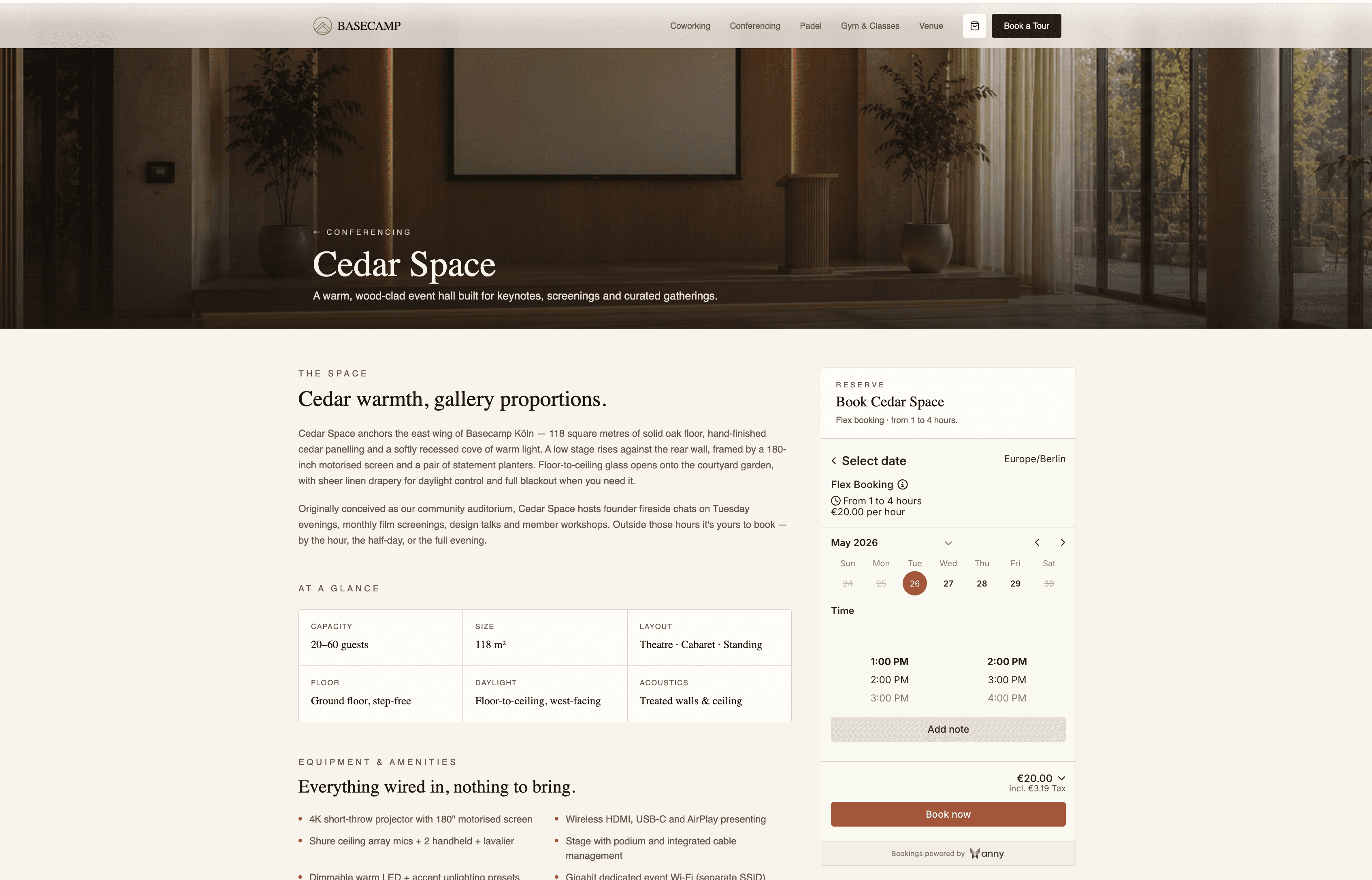
anny offers various widget types, which can be divided into three categories – depending on how and where you want to integrate the booking flow on your website:
Page Widgets display the entire booking area as a complete, standalone page:
Widget | Best used for |
|---|---|
Organization Page | Complete booking page with tabs, filters, and resource overview |
Organization Calendar | Calendar-oriented booking experience for the entire organization |
Resource Page | Detailed view and booking page for a single resource |
Resource Calendar | Calendar view for a single resource |
3D Map | Visual floor plan navigation with bookable areas |
Subscription Page | Sign up for memberships & subscription packages directly |
Panel Widgets are perfect if you have your own page content and only want to embed the booking flow – e.g., on a landing page right next to a descriptive text:
Widget | Best used for |
|---|---|
Resource Booking Panel | Booking flow for a single resource |
Service Booking Panel | Booking flow for a single service |
Button Widgets open the booking flow in a modal upon clicking – ideal for navigation menus, hero sections, or as a subtle Call-to-Action:
Widget | Best used for |
|---|---|
Organization Button | Open your entire service offering in a modal |
Resource / Service Button | Targeted booking of a specific resource or service |
Subscription Button | Complete memberships directly in a modal |
Global Helper Widgets round off the booking experience:
Login Button – enables user login directly on your website
Cart Button – displays the shopping cart with a live badge in the navigation
You can find a complete overview of all widget types with technical details in the anny Help Center article on widget embedding. To see how all these widgets look and function in practice, try them live on the Basecamp Demo Page.
Step-by-Step: How to Embed your Booking System into your Website with anny
Embedding an anny widget is done in just a few simple steps, even without any technical background:
1. Create your anny account: Before you can get started, you need an anny booking page. If you don't have an account yet, you can test anny for free here and set up your booking system in just a few minutes.
2. Choose your widget level and type: First, decide what you want to embed: your organization's entire booking page or a single resource. Then select the right widget type – for example, a side widget for a full booking overview or a panel widget if you want to embed the booking flow right alongside your own content.
3. Configure the widget in your anny dashboard: Navigate to the booking page of the corresponding level (org or resource) in the admin panel. There, select the desired component and configure the available options – such as which filters are displayed, which resources are visible, or which default view is loaded.
4. Customize the design: To ensure the widget blends perfectly with your website, customize it under Organization → Settings → Booking Page → Brand Design to match your corporate identity: primary and secondary colors, font and background colors, corner radius, and logo. This design applies account-wide – you don't have to set it up again for every individual resource.
5. Copy the embed code: anny automatically generates the correct embed code for you. Simply insert the global widget script once into the <head> of your website, and then place the actual widget component wherever you want it to appear.
6. Insert it into your website: Paste the code into your CMS – whether you're using WordPress, Webflow, Squarespace, or a custom website. A simple HTML block or embed element is all it takes; no developer skills required.
7. Test it on desktop and mobile: Double-check that the widget loads correctly, the booking flow runs smoothly, and the layout looks fantastic on mobile devices. Display issues that are invisible on desktops often pop up on smartphones.
8. Go live! Everything looking good? Publish your changes – your booking system is now seamlessly embedded directly into your website.
🔗 You can find the complete technical guide with all configuration options in the anny Help Center article.
These mistakes are costing you bookings—and how to easily avoid them
If you've embedded your booking system, you've already taken the most important step! To make sure your widget works exactly as you want it to, it's worth taking a quick look at the most common stumbling blocks – most of them can be fixed in just a few simple steps:
Wrong Sizing
The widget is too big or too small for its intended container, making it look unfinished.
How to fix it: Test the widget in its actual container and adjust the height directly in the anny dashboard.
Scroll in Scroll
If the widget creates its own scroll area within your page, it causes a double scrolling effect – which is especially annoying on mobile devices.
How to fix it: Use the fullscreen option or set the widget height so that the entire content is visible without internal scrolling.
No Theming / Wrong Theming
A widget without custom design fits poorly, looking like third-party software that doesn't match the rest of your website.
How to fix it: Customize the primary color, background, text color, and corner radius to perfectly match your brand's corporate design.
Low Contrast
Insufficient color contrast between the text and the background makes it hard to read.
How to fix it: Check all color combinations for sufficient contrast after customizing your design – a simple online contrast checker is all you need.
Redundant Content
Displaying the same information twice – such as the resource name in the widget header and again in the page text right above it – creates confusion.
How to fix it: Consider which information the widget already provides and remove duplicate content from the surrounding page text.
Multiple Inline
Having multiple large-format widgets on a single page slows down loading times and distracts visitors. How to fix it: Use a maximum of one primary inline widget per page – for additional offers, it is much better to use separate subpages or button widgets.
Calendar Non-Fullscreen
A calendar widget in a container that's too small is hard to use on mobile devices.
How to fix it: Always embed calendar widgets in fullscreen mode or in a sufficiently large container, and make sure to test the experience on a smartphone.
Best Practices: How to get the absolute most out of your anny widgets
Technical integration is just the first step. Whether the widget actually leads to more bookings depends heavily on how you implement and maintain it. These basic rules have proven themselves in practice:
Only the right widget for each specific use case: A booking panel for a single room doesn't need a full calendar – and vice versa. Less is almost always more here.
Test mobile first: Most of your website visitors today are using a smartphone. A widget that looks perfect on desktop, but causes scroll-in-scroll issues or gets unreadably small on mobile, misses its purpose.
Placement is key: Nobody will find a widget that is hidden deep in a subpage. Place your primary booking entry point – like a Booking Button – prominently in your navigation or directly in the hero section of your homepage.
Consistent theming: Colors, fonts, borders – the closer the widget aligns with your corporate design, the more it feels like a seamless, integrated part of your website. This builds trust and boosts conversion rates.
Keep an eye on performance: After going live, it pays off to regularly check how the widget is being used. Helpful questions to ask:
How many users start the booking flow – and how many complete it?
At which step in the process do users drop out?
Does the widget perform better on the homepage than on the landing page?
Wrap-up
Embedding your booking system directly into your website gives potential clients exactly what they need at the crucial moment: a seamless, direct path to booking – no detours, no external sites, and no media disruption.
The anny widgets make this technically easy to implement, without requiring any coding skills. However, what matters isn't just the embed itself, but how you design it: choosing the right widget for your specific use case, applying clean theming, ensuring mobile optimization, and placing it where users will actually see it.
Ready to embed your own booking system? Book your personal demo today and let our team guide you through the process.





" height="38px" id="bH388uk2E" transform="translate(1 1)" width="118.00000395534607px"/></svg>)